> ## Documentation Index
> Fetch the complete documentation index at: https://docs.mangopay.com/llms.txt
> Use this file to discover all available pages before exploring further.
# Onboarding and synchronizing sellers
> Guide to the new Mangopay-hosted experiences to onboard your sellers
export const LegalRepresentative = ({content}) =>
{content}
;
To onboard your sellers, Mangopay's Mirakl Connector leverages:
* The KYC banner in the Mirakl Seller Dashboard
* A series of frontend components built and hosted by Mangopay
Your sellers are guided through all the necessary steps at each stage, and the onboarding flows are fully compliant with KYC and SCA requirements.
## Benefits
**Faster time-to-market**
* Pre-built, compliant verification journeys hosted by Mangopay
* No integration effort
**Faster onboarding**
* Optimized verification flows with high pass rates with clear error messages
* Fewer visible fields: reduced friction for sellers
* Mobile-friendly, localized experiences to increase conversion
* Direct user feedback ensures fewer errors in bank details
* Localized experiences in the Seller's language
**Compliant by design**
* Mandatory SCA on Mangopay Account creation and recipient registration
## Prerequisites
**Mangopay:**
* SCA must be enabled
* Hosted Identity Verification must be enabled
* Hosted onboarding must be configured in the Mirakl Connector
**Mirakl:**
* Mandatory: KYC banner activation
* Enable the KYC status and banner in Mirakl by contacting Mirakl Support
* Mangopay must be the only system to update the KYC banner
* Optional: Adjust Seller bank account configuration in Mirakl to ensure no bank account details are collected within Mirakl
## Overview
All of Mangopay's onboarding interactions leverage the KYC banner for communication with the seller and for providing links to the Mangopay-hosted webpages.
There are 3 main pathways:
1. [Mangopay Account creation](#mangopay-account-creation)
2. [KYC verification](#kyc-verification)
3. [Recipient creation](#recipient-creation)
#### What's changing
This page describes the full seller onboarding pathways hosted by Mangopay. The improvements being brought to previous versions of the seller onboarding are:
* Addition of hosted SCA enrollment on Mangopay Account creation
* Ability to re-enroll in SCA if legal representative phone number or email changed
* New Recipient (bank account) creation experience, including SCA
* Ability to view the Recipient details once created
## Mangopay Account creation
The account creation flow is as follows:
Every 5 minutes, Mangopay's Mirakl Connector checks for new sellers on your platform. If the connector detects a new seller, it updates Mirakl's KYC banner with messaging and a link to the Mangopay hosted webpage.
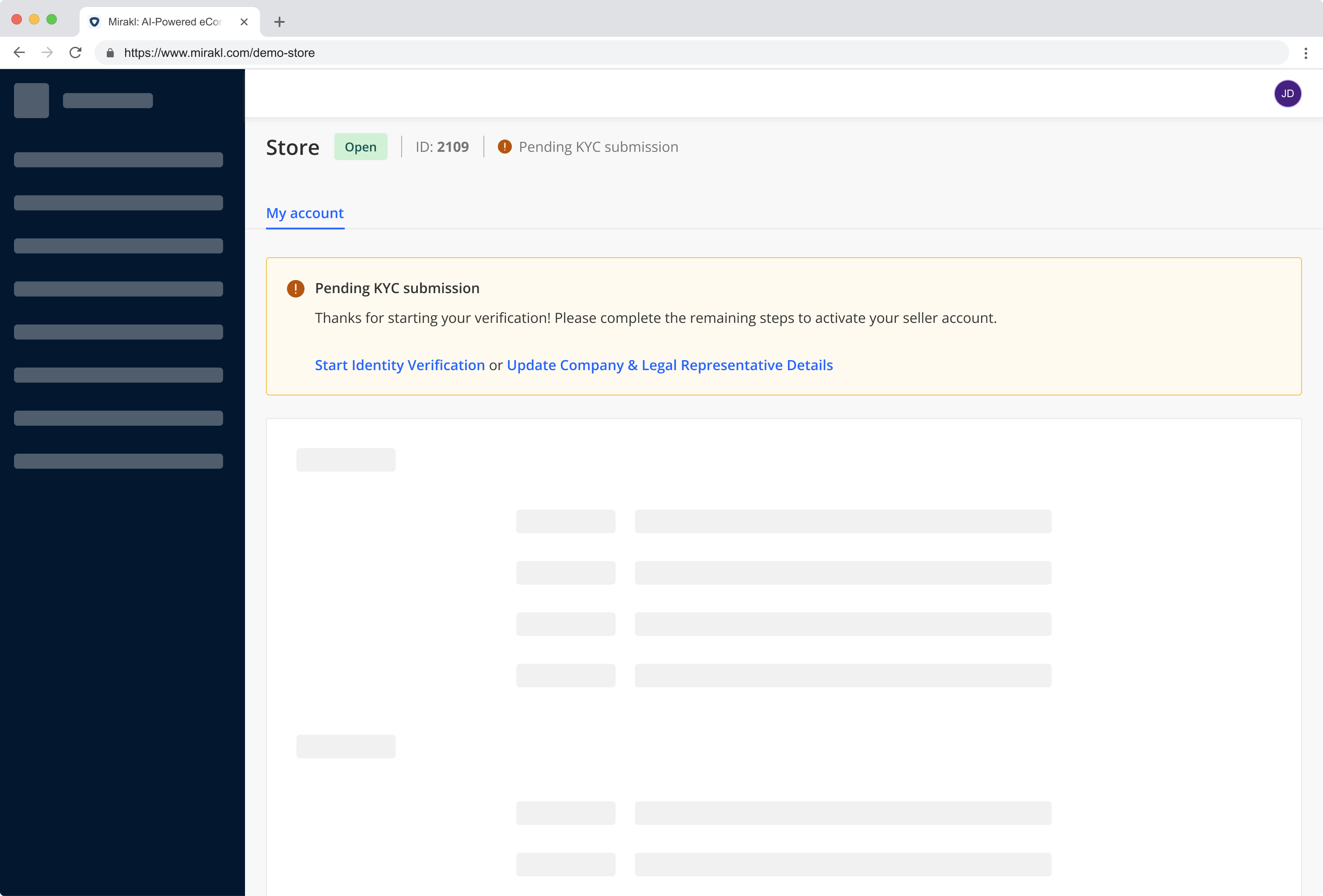 The link takes the Seller to a hosted webpage to create their Mangopay Account (which is a Legal User object in Mangopay API terms).
The Seller selects the type of their entity, which corresponds to their `LegalPersonType`. The [KYB local](/guides/users/verification/requirements/kyb-local) page lists local legal structures per country and the legal user type they should be registered as.
The link takes the Seller to a hosted webpage to create their Mangopay Account (which is a Legal User object in Mangopay API terms).
The Seller selects the type of their entity, which corresponds to their `LegalPersonType`. The [KYB local](/guides/users/verification/requirements/kyb-local) page lists local legal structures per country and the legal user type they should be registered as.
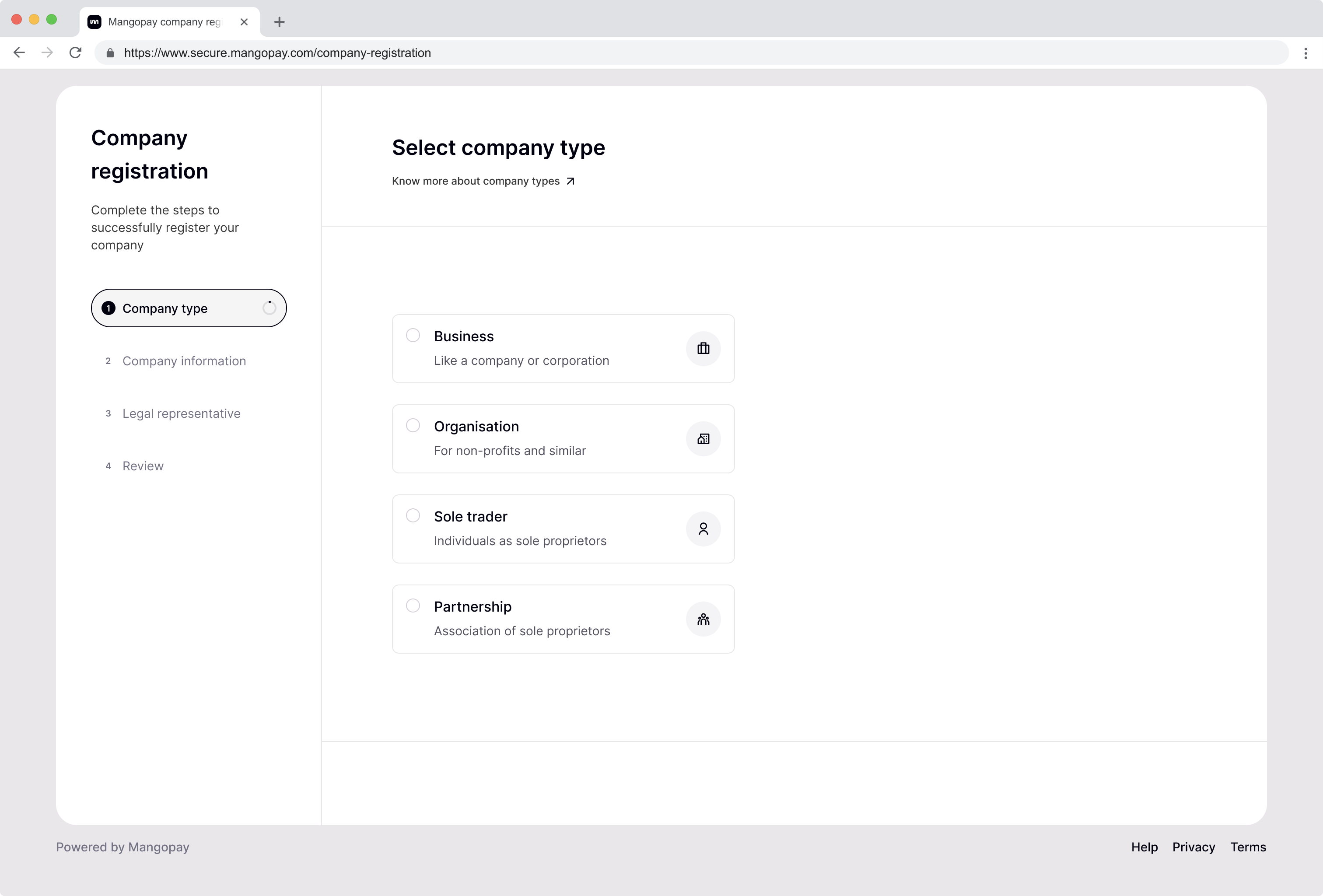 The next screen presents information take from Mirakl for the Seller to check. If anything is not correct, the Seller needs to return to Mirakl to update it.
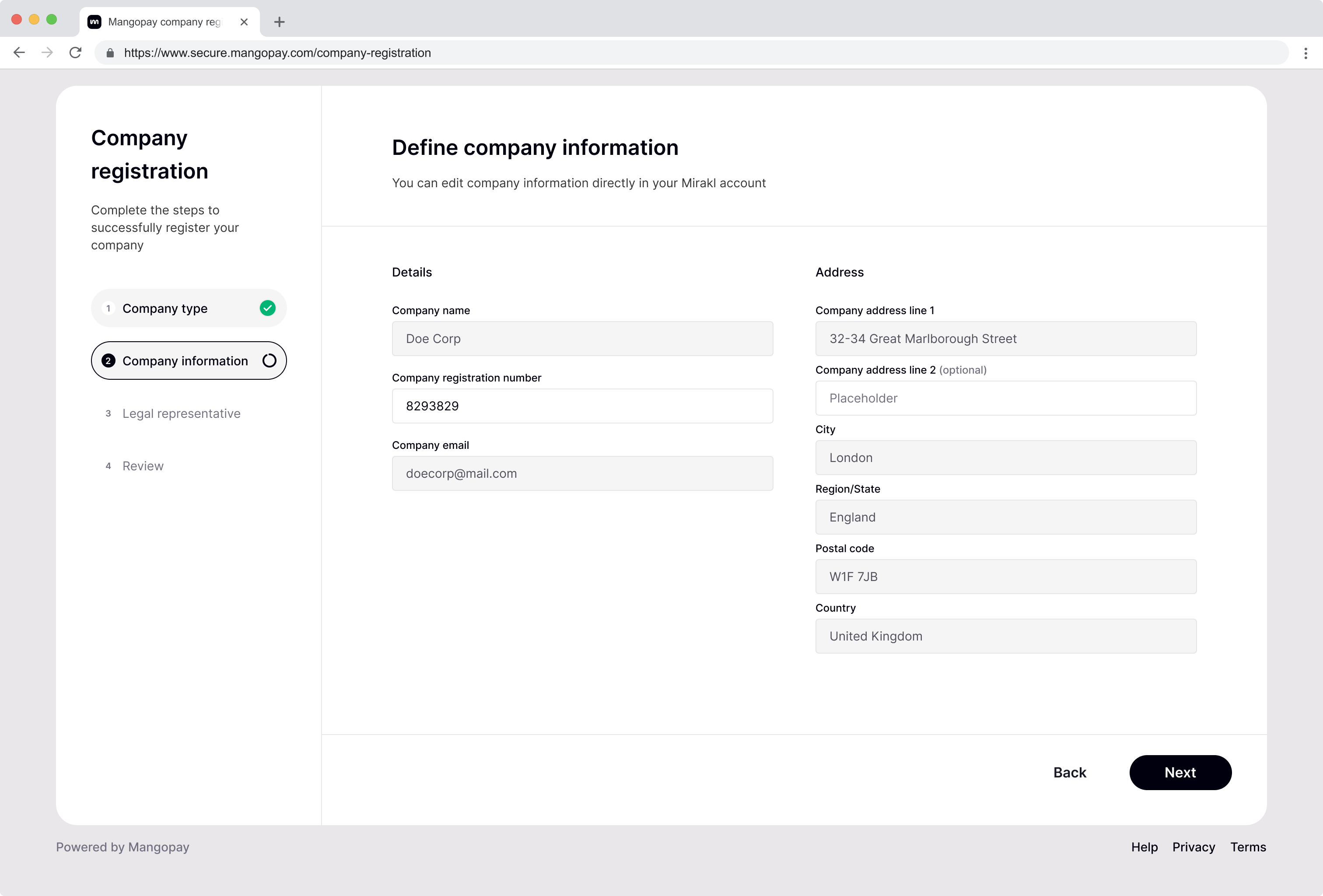 The Seller declares an individual as the of the business.
The email and phone number declared for the legal representative are used for SCA in the next step. The individual's name and nationality are used in the KYC liveness check.
The Seller declares an individual as the of the business.
The email and phone number declared for the legal representative are used for SCA in the next step. The individual's name and nationality are used in the KYC liveness check.
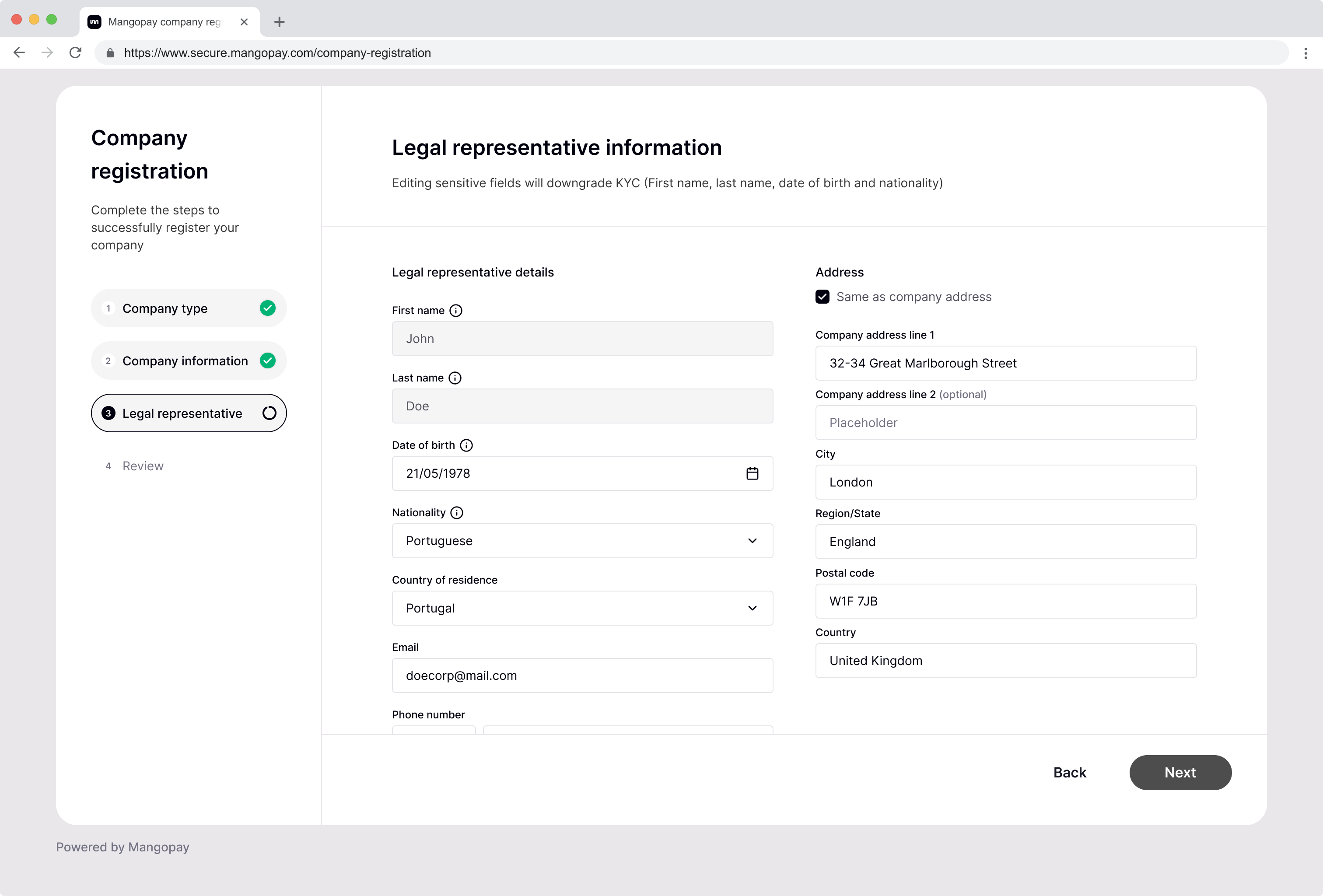 The final screen asks the Seller to review their input and confirm.
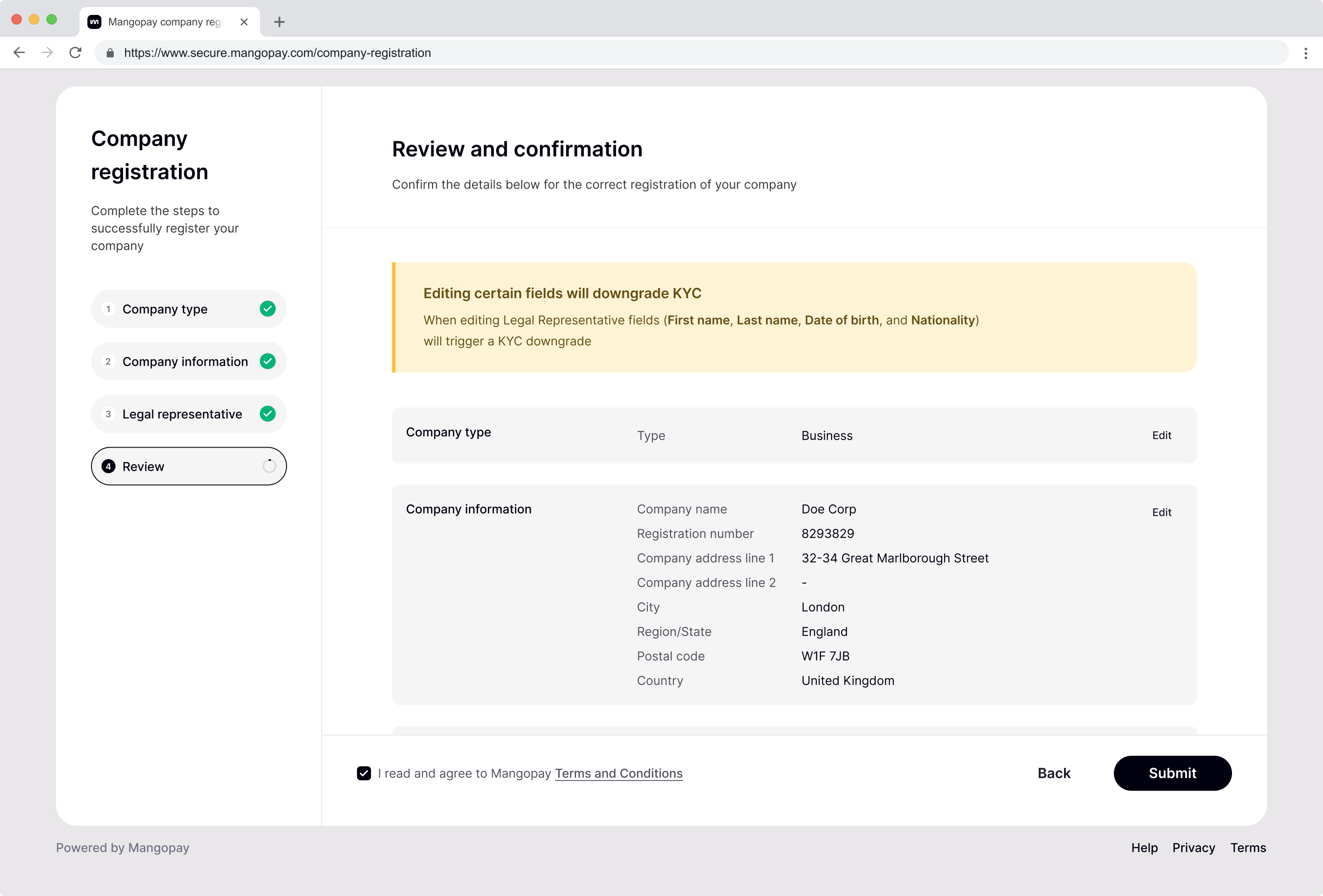 Once the form is complete, the connector calls the [POST Create a Legal User](/api-reference/users/create-legal-user-sca) endpoint to create the Legal User for the Seller, and the [POST Create a Wallet](/api-reference/wallets/create-wallet) endpoint to create their wallet.
After the registration form, the Seller is redirected to Mangopay's hosted SCA session to enroll their chosen [authentication factors](/guides/sca/factors).
Once complete, the Seller is taken back to Mirakl.
**Note – Connector also handles SCA re-enrollment**
If the Seller wishes to modify the phone number or email they used to enroll in SCA, then they are again redirect to Mangopay's SCA experience to re-enroll their new contact details.
### Identity verification (KYC/KYB)
The KYC/B verification flow is as follows:
Mangopay's Mirakl Connector checks for Sellers that are not yet KYC verified by Mangopay. If detected, the connector updates Mirakl's KYC banner with messaging and a link to the Mangopay hosted webpage.
Once the form is complete, the connector calls the [POST Create a Legal User](/api-reference/users/create-legal-user-sca) endpoint to create the Legal User for the Seller, and the [POST Create a Wallet](/api-reference/wallets/create-wallet) endpoint to create their wallet.
After the registration form, the Seller is redirected to Mangopay's hosted SCA session to enroll their chosen [authentication factors](/guides/sca/factors).
Once complete, the Seller is taken back to Mirakl.
**Note – Connector also handles SCA re-enrollment**
If the Seller wishes to modify the phone number or email they used to enroll in SCA, then they are again redirect to Mangopay's SCA experience to re-enroll their new contact details.
### Identity verification (KYC/KYB)
The KYC/B verification flow is as follows:
Mangopay's Mirakl Connector checks for Sellers that are not yet KYC verified by Mangopay. If detected, the connector updates Mirakl's KYC banner with messaging and a link to the Mangopay hosted webpage.
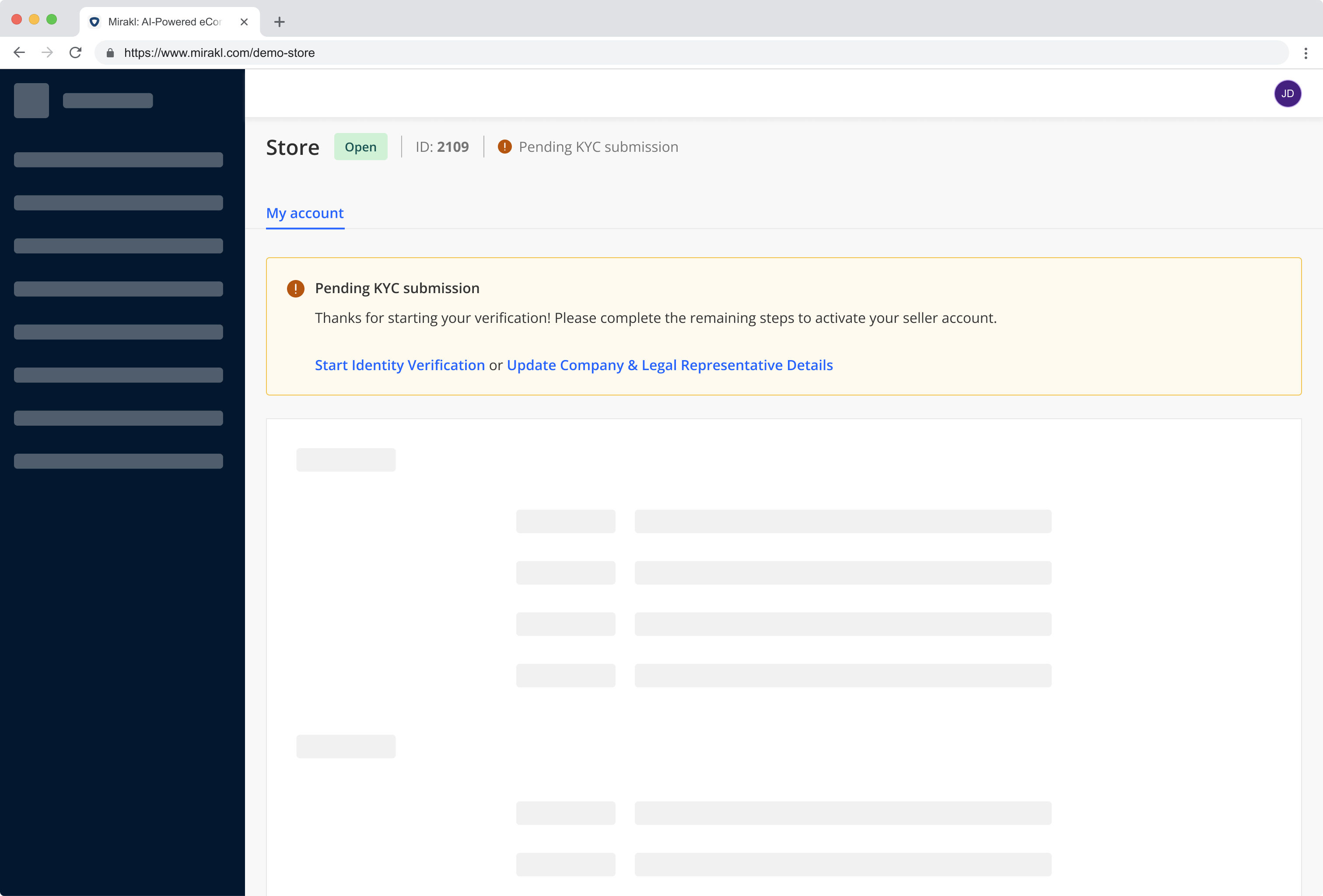 The link takes the Seller to a hosted webpage to complete their KYC verification. To run the [hosted KYC session](/guides/users/verification/hosted), the connector calls the [POST Create an IDV Session](/api-reference/idv-sessions/create-idv-session) endpoint.
The KYC process involves submitting business details and business documents. KYC verification also requires a liveness check performed by the person named as the declared legal representative.
Once complete, the Seller is taken back to Mirakl.
The link takes the Seller to a hosted webpage to complete their KYC verification. To run the [hosted KYC session](/guides/users/verification/hosted), the connector calls the [POST Create an IDV Session](/api-reference/idv-sessions/create-idv-session) endpoint.
The KYC process involves submitting business details and business documents. KYC verification also requires a liveness check performed by the person named as the declared legal representative.
Once complete, the Seller is taken back to Mirakl.
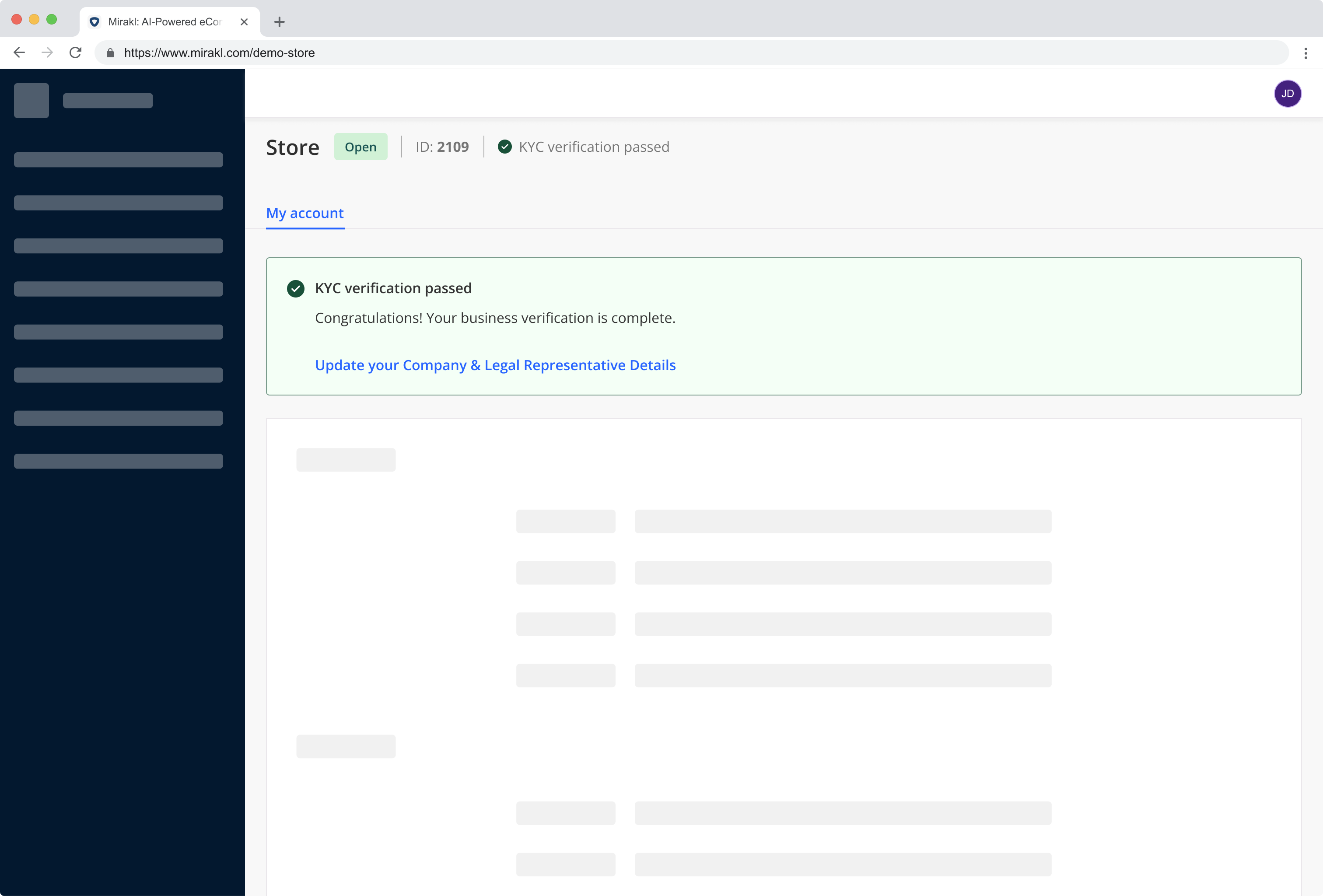
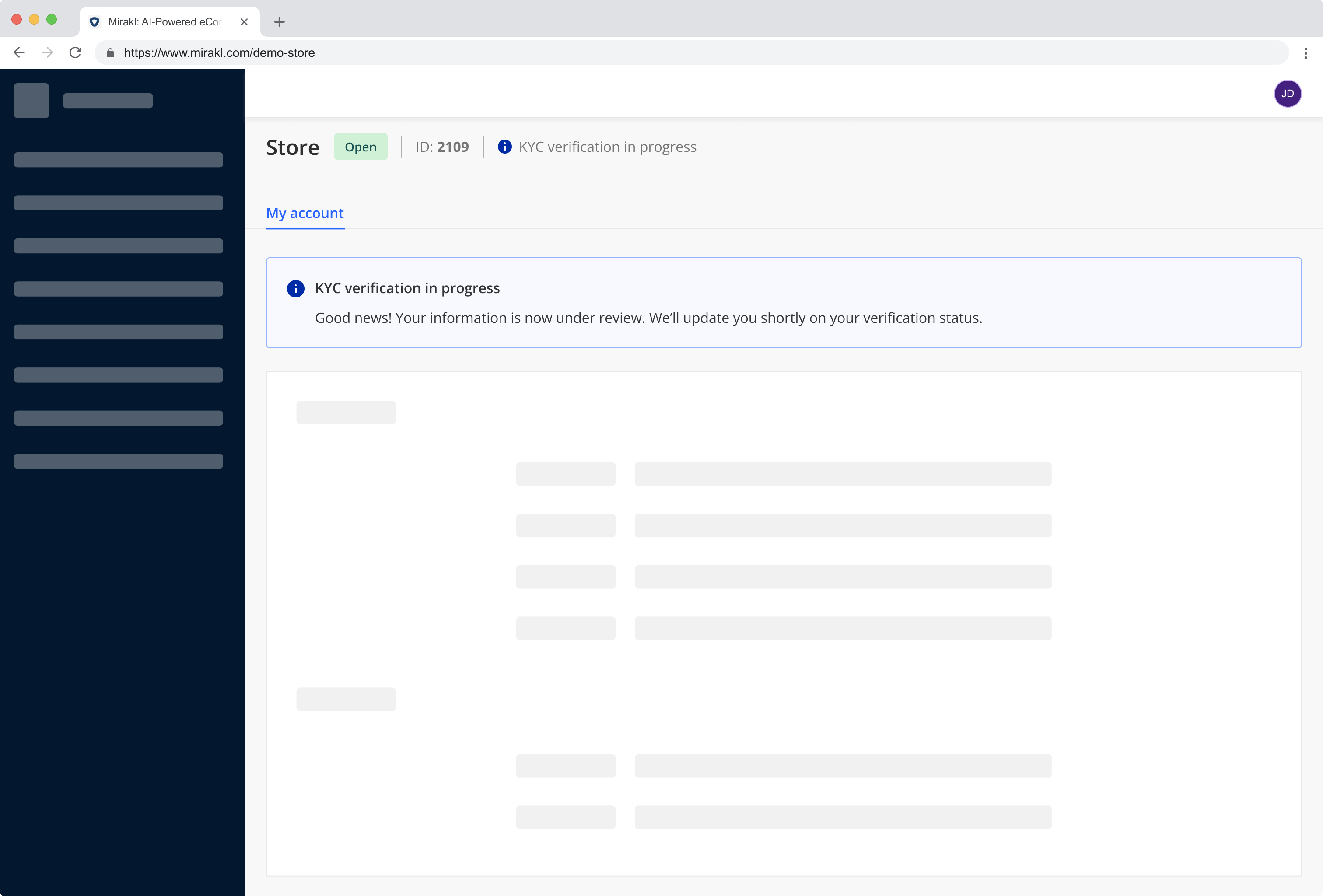 The KYC banner is updated with the outcome of the hosted KYC session.
If one or more checks were unsuccessful, then error messages are given to guide the user in understanding what happened and how they can succeed when they try again.
The KYC banner is updated with the outcome of the hosted KYC session.
If one or more checks were unsuccessful, then error messages are given to guide the user in understanding what happened and how they can succeed when they try again.
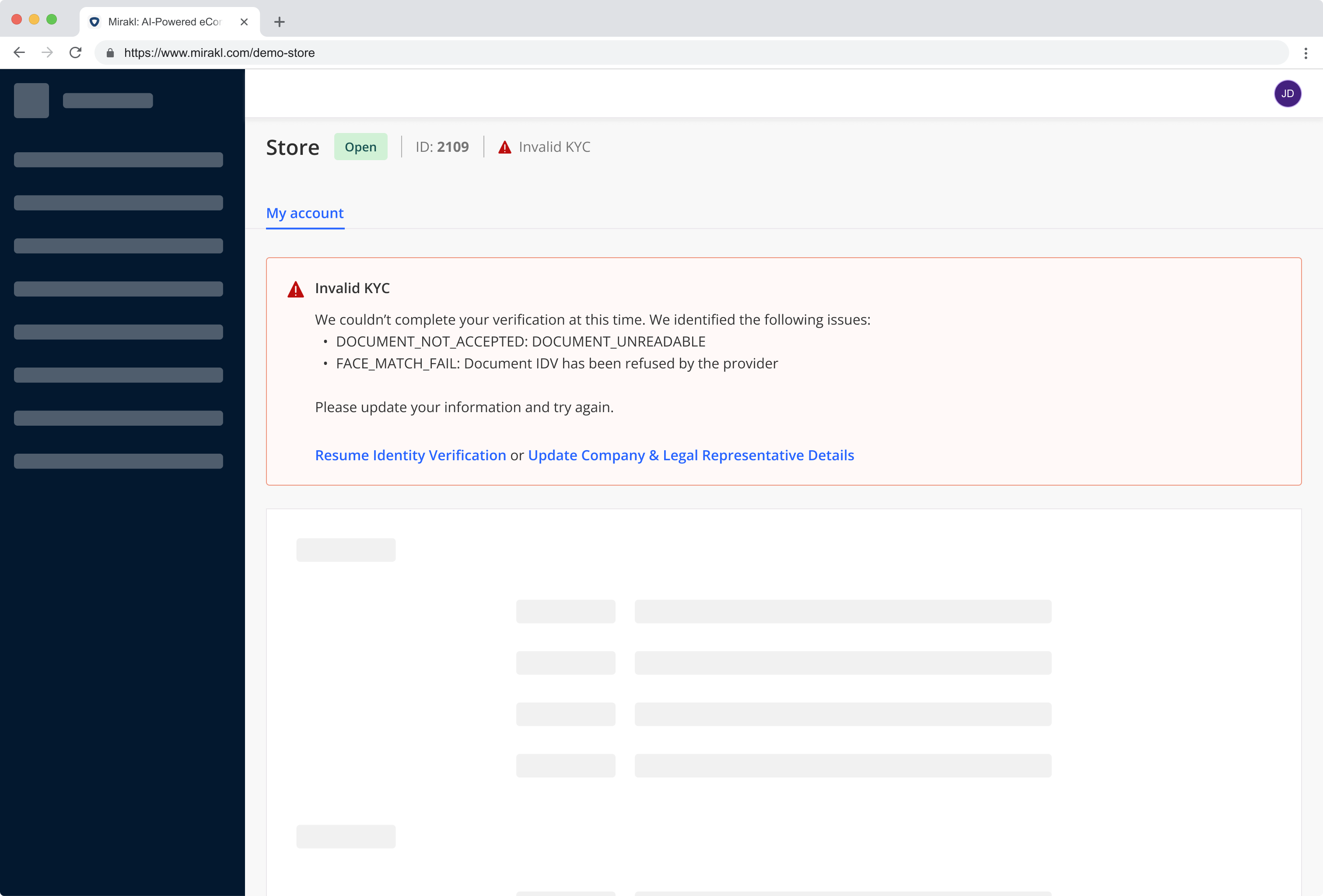 When the verification is successful, the banner on the Mirakl Dashboard is updated.
 **Note – Connector also handles KYB data updates**
If the seller wishes to modify identity data of the person who completed the KYC/B check, then they are again redirected to Mangopay's hosted KYC/B experience to verify the new individual.
### Recipient creation
The Recipient (bank account) registration flow is as follows:
Mangopay's Mirakl Connector checks for sellers that haven't registered an external bank account. If detected, the connector updates Mirakl's KYC banner with messaging and a link to the Mangopay hosted webpage.
**Note – Connector also handles KYB data updates**
If the seller wishes to modify identity data of the person who completed the KYC/B check, then they are again redirected to Mangopay's hosted KYC/B experience to verify the new individual.
### Recipient creation
The Recipient (bank account) registration flow is as follows:
Mangopay's Mirakl Connector checks for sellers that haven't registered an external bank account. If detected, the connector updates Mirakl's KYC banner with messaging and a link to the Mangopay hosted webpage.
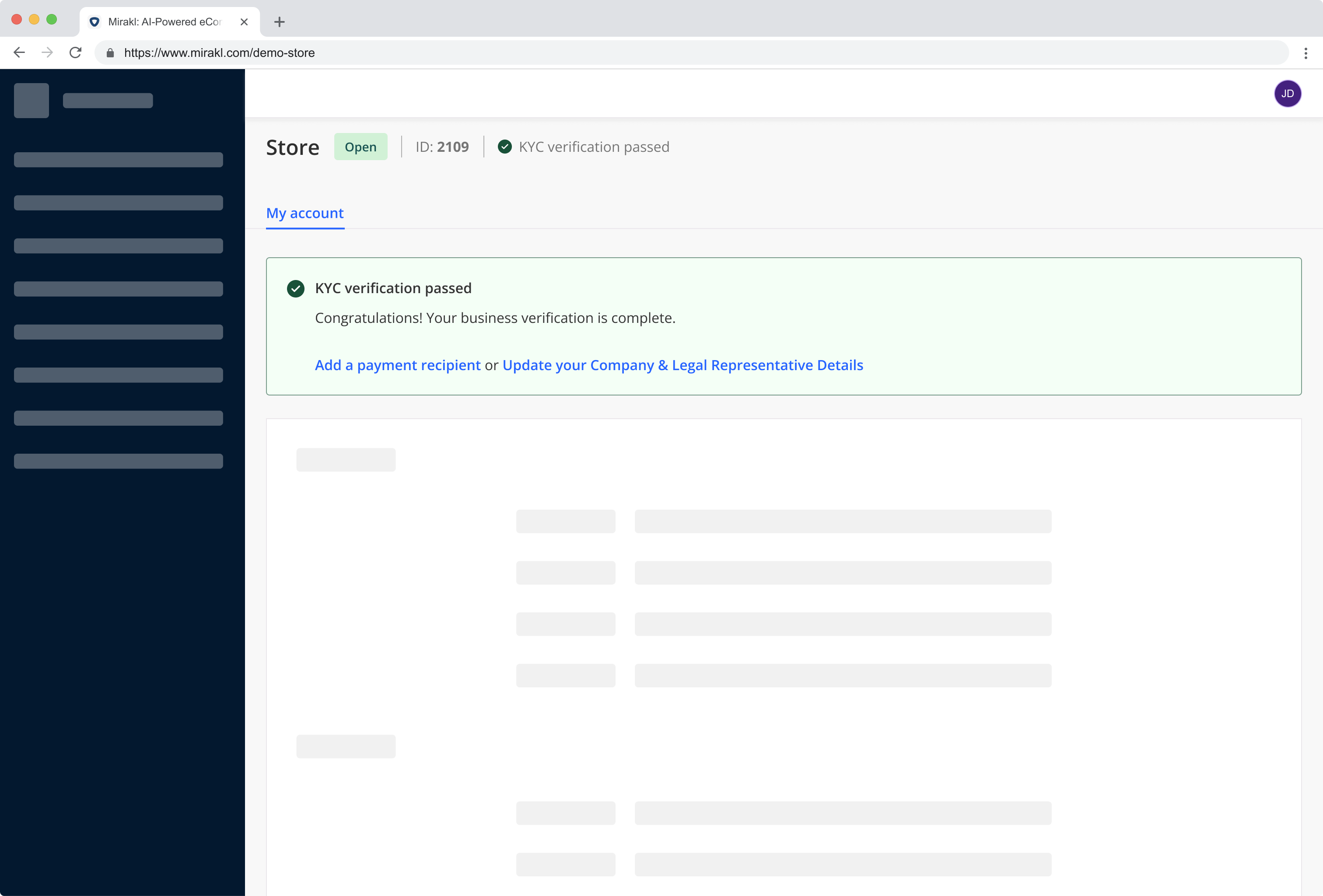 The link takes the Seller to Mangopay'd [hosted recipient registration](/sdks/elements) to add a new bank account (which is a Recipient object in Mangopay API terms).
The Seller completes the form to add their bank details, registered name, and address.
The form checks the format of the bank details based on the country and currency combination, and then validates the user's data against the schema using the [POST Validate data for a Recipient](/api-reference/recipients/validate-recipient-data) endpoint. Any issues are returned to the user on the form.
Once the data is validated, the connector calls the [POST Create a Recipient](/api-reference/recipients/create-recipient) endpoint to register the bank account.
The Seller is redirected to Mangopay's [hosted SCA session](/guides/sca/factors) to authenticate the new bank account.
Once complete, the Seller is taken back to Mirakl.
## Migration from legacy
**Caution – Actions below are irreversible and must only be done after activation**
The additions to the new fully hosted onboarding ([described above](#what’s-changing)) must be activated before your platform takes the actions below.
The actions below irreversibly disable the previously used onboarding flows. Removing them prematurely will prevent your sellers from onboarding successfully.
If you have any doubt, please contact Mangopay via the Dashboard.
Once Mangopay has activated the new fully hosted seller onboarding experiences described above, your platform needs to remove the following redundant settings from the Mirakl Dashboard.
#### 1. Delete Mangopay custom fields in Mirakl
1. Go to ***Settings*** > ***Stores*** > ***Profile configuration***
2. Delete the custom fields required by the Mangopay connector (e.g., `legalrep-firstname`). Note that deletion is not instantaneous and may take some time to complete.
* `legalrep-firstname`
* `legalrep-lastname`
* `legalrepaddress-addressline1`
* `legalrepaddress-addressline2`
* `legalrepaddress-city`
* `legalrepaddress-region`
* `legalrepaddress-postalcode`
* `legalerepaddress-country`
* `legalrep-birthday`
* `legalrep-email`
* `legalrep-nationality`
* `legalrep-countryofresidence`
* `mgp-t-and-c`
* `legal-user`
* `registered-company-name`
* `companynumber`
* `not-applicable`
* `ubo-2`, `ubo-3`, `ubo-4`
* `ubo-1-first-name`, `ubo-2-first-name`, `ubo-3-first-name`, `ubo-4-first-name`
* `ubo-1-last-name`, `ubo-2-last-name`, `ubo-3-last-name`, `ubo-4-last-name`
* `ubo-1-address-line1`, `ubo-2-address-line1`, `ubo-3-address-line1`, `ubo-4-address-line1`
* `ubo-1-address-line2`, `ubo-2-address-line1`, `ubo-3-address-line1`, `ubo-4-address-line1`
* `ubo-1-address-postal-code`, `ubo-2-address-postal-code`, `ubo-3-address-postal-code`, `ubo-4-address-postal-code`
* `ubo-1-address-city`, `ubo-2-address-city`, `ubo-3-address-city`, `ubo-4-address-city`
* `ubo-1-address-region`, `ubo-2-address-region`, `ubo-3-address-region`, `ubo-4-address-region`
* `ubo-1-address-country`, `ubo-2-address-country`, `ubo-3-address-country`, `ubo-4-address-country`
* `ubo-1-nationality`, `ubo-2-nationality`, `ubo-3-nationality`, `ubo-4-nationality`
* `ubo-1-birthday`, `ubo-2-birthday`, `ubo-3-birthday`, `ubo-4-birthday`
* `ubo-1-birthplace-city`, `ubo-2-birthplace-city`, `ubo-3-birthplace-city`, `ubo-4-birthplace-city`
* `ubo-1-birthplace-country`, `ubo-2-birthplace-country`, `ubo-3-birthplace-country`, `ubo-4-birthplace-country`
#### 2. Remove bank account details from the Mirakl Dashboard
1. Go to ***Settings*** > ***Stores*** > ***Payment***
2. Choose to remove bank account details either:
* Per store (recommended during testing), or
* Globally (for all stores).
Removing these details will:
* Disable operators’ ability to manage bank accounts
* Delete the registered bank accounts linked to each store
The link takes the Seller to Mangopay'd [hosted recipient registration](/sdks/elements) to add a new bank account (which is a Recipient object in Mangopay API terms).
The Seller completes the form to add their bank details, registered name, and address.
The form checks the format of the bank details based on the country and currency combination, and then validates the user's data against the schema using the [POST Validate data for a Recipient](/api-reference/recipients/validate-recipient-data) endpoint. Any issues are returned to the user on the form.
Once the data is validated, the connector calls the [POST Create a Recipient](/api-reference/recipients/create-recipient) endpoint to register the bank account.
The Seller is redirected to Mangopay's [hosted SCA session](/guides/sca/factors) to authenticate the new bank account.
Once complete, the Seller is taken back to Mirakl.
## Migration from legacy
**Caution – Actions below are irreversible and must only be done after activation**
The additions to the new fully hosted onboarding ([described above](#what’s-changing)) must be activated before your platform takes the actions below.
The actions below irreversibly disable the previously used onboarding flows. Removing them prematurely will prevent your sellers from onboarding successfully.
If you have any doubt, please contact Mangopay via the Dashboard.
Once Mangopay has activated the new fully hosted seller onboarding experiences described above, your platform needs to remove the following redundant settings from the Mirakl Dashboard.
#### 1. Delete Mangopay custom fields in Mirakl
1. Go to ***Settings*** > ***Stores*** > ***Profile configuration***
2. Delete the custom fields required by the Mangopay connector (e.g., `legalrep-firstname`). Note that deletion is not instantaneous and may take some time to complete.
* `legalrep-firstname`
* `legalrep-lastname`
* `legalrepaddress-addressline1`
* `legalrepaddress-addressline2`
* `legalrepaddress-city`
* `legalrepaddress-region`
* `legalrepaddress-postalcode`
* `legalerepaddress-country`
* `legalrep-birthday`
* `legalrep-email`
* `legalrep-nationality`
* `legalrep-countryofresidence`
* `mgp-t-and-c`
* `legal-user`
* `registered-company-name`
* `companynumber`
* `not-applicable`
* `ubo-2`, `ubo-3`, `ubo-4`
* `ubo-1-first-name`, `ubo-2-first-name`, `ubo-3-first-name`, `ubo-4-first-name`
* `ubo-1-last-name`, `ubo-2-last-name`, `ubo-3-last-name`, `ubo-4-last-name`
* `ubo-1-address-line1`, `ubo-2-address-line1`, `ubo-3-address-line1`, `ubo-4-address-line1`
* `ubo-1-address-line2`, `ubo-2-address-line1`, `ubo-3-address-line1`, `ubo-4-address-line1`
* `ubo-1-address-postal-code`, `ubo-2-address-postal-code`, `ubo-3-address-postal-code`, `ubo-4-address-postal-code`
* `ubo-1-address-city`, `ubo-2-address-city`, `ubo-3-address-city`, `ubo-4-address-city`
* `ubo-1-address-region`, `ubo-2-address-region`, `ubo-3-address-region`, `ubo-4-address-region`
* `ubo-1-address-country`, `ubo-2-address-country`, `ubo-3-address-country`, `ubo-4-address-country`
* `ubo-1-nationality`, `ubo-2-nationality`, `ubo-3-nationality`, `ubo-4-nationality`
* `ubo-1-birthday`, `ubo-2-birthday`, `ubo-3-birthday`, `ubo-4-birthday`
* `ubo-1-birthplace-city`, `ubo-2-birthplace-city`, `ubo-3-birthplace-city`, `ubo-4-birthplace-city`
* `ubo-1-birthplace-country`, `ubo-2-birthplace-country`, `ubo-3-birthplace-country`, `ubo-4-birthplace-country`
#### 2. Remove bank account details from the Mirakl Dashboard
1. Go to ***Settings*** > ***Stores*** > ***Payment***
2. Choose to remove bank account details either:
* Per store (recommended during testing), or
* Globally (for all stores).
Removing these details will:
* Disable operators’ ability to manage bank accounts
* Delete the registered bank accounts linked to each store