> ## Documentation Index
> Fetch the complete documentation index at: https://docs.mangopay.com/llms.txt
> Use this file to discover all available pages before exploring further.

# PayPal

## About

PayPal is a popular international payment method that allows users to pay by connecting to their PayPal account and using a connected card or bank account or their PayPal account balance.

<table>
  <tbody>
    <tr>
      <th class="header">Region</th>

      <td class="table-content">
        International
      </td>
    </tr>

    <tr>
      <th class="header">Currencies</th>

      <td class="table-content">
        See the <a href="/guides/currencies">currencies</a> page for details
      </td>
    </tr>

    <tr>
      <th class="header">[Refunds](#refunds)</th>

      <td class="table-content">
        Yes, within 180 days
      </td>
    </tr>

    <tr>
      <th class="header">Disputes</th>

      <td class="table-content">
        Yes, see <a href="#disputes">disputes</a> below for details
      </td>
    </tr>

    <tr>
      <th class="header">[Preauthorization](#preauthorized-payments)</th>

      <td class="table-content">
        Yes
      </td>
    </tr>

    <tr>
      <th class="header">[Recurring payments](#recurring-payments)</th>

      <td class="table-content">
        Yes
      </td>
    </tr>
  </tbody>
</table>

## Activation

PayPal requires approval and integration with PayPal and activation by Mangopay. Contact the Mangopay Support team <a href="https://hub.mangopay.com/" target="_blank">via the Dashboard</a> to get started.

<Accordion title="Activation process">
  <Steps>
    <Step title="Mangopay checks your platform’s eligibility">
      PayPal is only available for platforms that are:

      * Based in the EU, UK, or Switzerland
      * Not operating a crowdfunding business model
    </Step>

    <Step title="Mangopay refers your platform to PayPal">
      At this stage, Mangopay can activate Sandbox for your platform to begin testing.
    </Step>

    <Step title="PayPal approves your request" />

    <Step title="PayPal accompanies your platform in setting up a PayPal Business account">
      This includes:

      * Due diligence and business registration
      * Pricing negotiation, on top of Mangopay's commission
      * Creation of the PayPal account
      * Integration support (PayPal button etc.)
    </Step>

    <Step title="PayPal notifies Mangopay that your platform is ready to go live" />

    <Step title="Mangopay activates PayPal in Production">
      Upon activation, Mangopay provides you with an activation link.
    </Step>

    <Step title="You approve Mangopay in PayPal">
      Using the activation link provided at activation, you give approval to Mangopay to process payments on behalf of your PayPal Business account.
    </Step>
  </Steps>
</Accordion>

## Submit pre-transaction risk data

PayPal requires all platforms to send risk-related data before each transaction, which allows PayPal to more accurately assess risk on payments over time. The data points requested depend on the industry in some cases, and platforms should send as much of the requested data as possible.

Sending the risk data helps ensure maximum coverage of transactions with seller protection and help to reduce chargebacks. Failure to provide the risk data may limit seller protection coverage on transactions, and may result in a higher rate of disputes and fraud-related declines.

Submitting risk data to PayPal involves an additional API with the data payload, and then linking the data to the pay-in:

<Steps>
  <Step title="Submit data about the transaction">
    Call the [POST Submit data for a PayPal PayIn](/api-reference/paypal/submit-data-paypal-payin) endpoint with the relevant data points and the specific values for the buyer's transaction.

    The data points presented in the API reference are standard fields for all marketplace businesses. PayPal requires some different or additional data from platforms operating in the following industries:

    * Events and ticketing
    * Online travel agents:
      * Car rentals
      * Hotels
      * Transportation
      * Travel packages
    * Retail and groceries
    * Cruise lines
    * Buy online, pick up in store (BOPIS)
    * Crypto

    Before integrating the data collection endpoint, platforms operating in the verticals above need to contact Mangopay <a href="https://hub.mangopay.com/" target="_blank">via the Dashboard</a>.

    <Check>
      **Best practice – Send as much data as possible**

      Because it is used for risk analysis purposes, PayPal requests that platforms send as much data as they have about the transaction.
    </Check>
  </Step>

  <Step title="Retrieve the DataCollectionId">
    The data collection endpoint returns a `DataCollectionId` in the API response.

    You can retrieve the full data set that you sent by calling the [GET View data submitted for a PayPal PayIn](/api-reference/paypal/view-data-paypal-payin) endpoint.
  </Step>

  <Step title="Include DataCollectionId in pay-in call">
    To link the pre-transaction data to the payment, send the relevant `DataCollectionId` in your pay-in request. The parameter should be sent on one-time and recurring pay-ins:

    * [POST Create a PayPal PayIn](/api-reference/paypal/create-paypal-payin)
    * [POST Create a Recurring PayPal PayIn (CIT)](/api-reference/paypal/create-recurring-paypal-payin-cit)
    * [POST Create a Recurring PayPal PayIn (MIT)](/api-reference/paypal/create-recurring-paypal-payin-mit)

    The `DataCollectionId` is not returned in the API response on the pay-in endpoints.

    Each pay-in, including recurring merchant-initiated transactions (MIT), requires a new unique `DataCollectionId`.
  </Step>
</Steps>

## One-time payments

For one-time payments, the flow is as follows:

<Steps>
  <Step title="User chooses payment method">
    On your app or website, the user selects PayPal as the payment method
  </Step>

  <Step title="Pre-transaction data">
    Your platform submits data about the transaction via the [POST Submit data for a PayPal PayIn](/api-reference/paypal/submit-data-paypal-payin) endpoint and retrieves the returned `DataCollectionId` ([see above](#submit-pre-transaction-risk-data)).
  </Step>

  <Step title="Payment initiation">
    For one-time payments, you create the payment request by calling <a href="/api-reference/paypal/create-paypal-payin">POST Create a PayPal PayIn</a>, specifying the `ReturnURL` and including the `DataCollectionId`.

    If the payments are recurring (for example, a subscription), you need an additional API call to setup the recurrence before requesting the pay-in (see [Recurring](#recurring) section)
  </Step>

  <Step title="Redirection">
    You redirect the user to the hosted PayPal page via the `RedirectURL` in the API response.

    On the PayPal page, the user connects to their PayPal account, selects a card, bank, or PayPal balance, and confirms the payment.

    <Note>
      **Note – Session timeout**

      The PayPal session times out after 3 hours.
    </Note>
  </Step>

  <Step title="Return">
    After payment, the user is returned to the `ReturnURL` that you specified in the payment request.
  </Step>

  <Step title="Outcome">
    The transaction is complete when the pay-in status changes from `CREATED` to `SUCCEEDED` or `FAILED`, indicating the outcome.

    Set up [webhooks](/webhooks) for the `PAYIN_NORMAL_SUCCEEDED` and `PAYIN_NORMAL_FAILED` [event types](/webhooks/event-types) to be notified of this.
  </Step>
</Steps>

## Recurring payments

Recurring payments with PayPal requires a pay-in registration object to setup the recurrence, before your platform can request pay-ins linked to the registration.

The first pay-in, a **customer-initiated transaction (CIT)**, requires the user to authenticate the payment (in the same way as one-time pay-ins). Your platform can then request subsequent pay-ins without the user present, known as **merchant-initiated transactions (MITs)**, at the frequency and amount agreed by the user.

The steps are as follows:

<Steps>
  <Step title="Set up the recurring registration">
    Call the [POST Create a Recurring PayIn Registration](/api-reference/recurring-payin-registrations/create-recurring-payin-registration-paypal) to register details about the user, the wallet, and the payments.

    The registration contains the amount of the first transaction. It is possible to specify the amount of subsequent transactions, but if you do so you are not able to change them later.

    In the response, the `RecurringPayinRegistrationId` allows you to link the recurring pay-ins to this registration object. The `Status` of the registration object is `CREATED`.
  </Step>

  <Step title="Submit pre-transaction data">
    Send data about the transaction via the [POST Submit data for a PayPal PayIn](/api-reference/paypal/submit-data-paypal-payin) endpoint and retrieve the returned `DataCollectionId` ([see above](#submit-pre-transaction-risk-data)).
  </Step>

  <Step title="Process the customer-initiated transaction (CIT)">
    Call the [POST Create a Recurring PayPal PayIn (CIT)](/api-reference/paypal/create-recurring-paypal-payin-cit) to initiate the first transaction, and include the `DataCollectionId`.

    When the first transaction is initiated, the `Status` of the registration object becomes `AUTHENTICATION_NEEDED`.

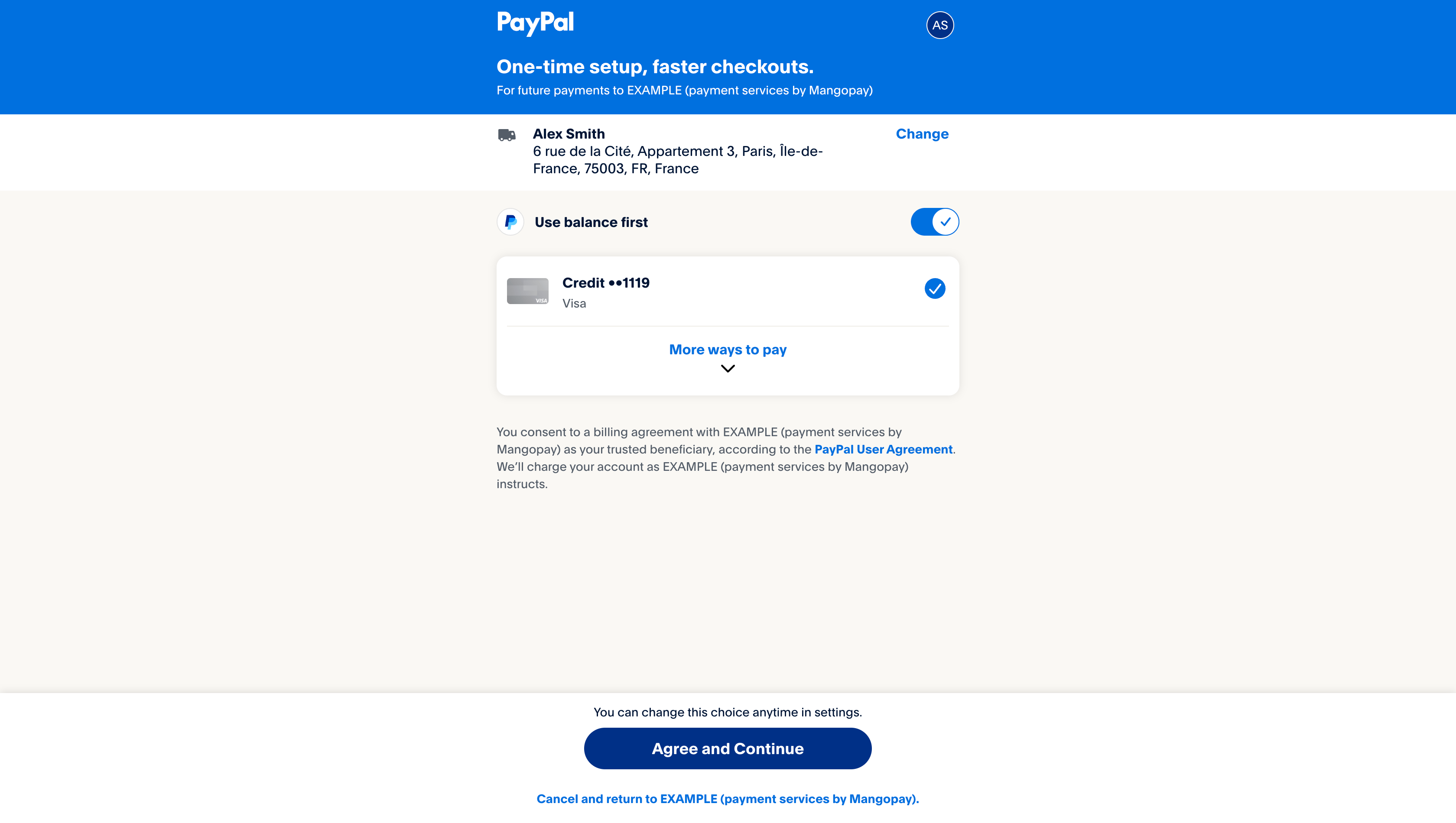
    To authenticate the CIT, you need to redirect the user to the `RedirectURL` so they can agree to the recurring payments and validate the first transaction.

    <img src="https://mintcdn.com/mangopay/ga_wyIp8pWx6MTlP/images/screenshot_paypal_recurring.png?fit=max&auto=format&n=ga_wyIp8pWx6MTlP&q=85&s=435e5c4fadcfdf041682a980e2f84a6c" width="3360" height="1900" data-path="images/screenshot_paypal_recurring.png" />

    For compliance, this screen specifies your platform’s name alongside Mangopay’s in the format:

    > PlatformName (payment services by Mangopay)

    Once the user agrees and the first payment is successfully authorized, the `Status` of the registration object changes to `IN_PROGRESS`. This indicates that you can debit subsequent payments without the user present.

    Set up a webhook for the `RECURRING_REGISTRATION_IN_PROGRESS` event type to be notified of this.
  </Step>

  <Step title="Process merchant-initiated transactions (MIT)">
    Each subsequent payment, without the user present, also requires a new `DataCollectionId`, obtained in the same way as the CIT by calling the [POST Submit data for a PayPal PayIn](/api-reference/paypal/submit-data-paypal-payin) endpoint ([see above](#submit-pre-transaction-risk-data)).

    Once you have the `DataCollectionId`, call the the [POST Create a Recurring PayPal PayIn (MIT)](/api-reference/paypal/create-recurring-paypal-payin-mit) endpoint to initiate the pay-in.

    The user is not present for the MIT pay-in, and so no redirection is necessary.

    <Note>
      **Note – No re-authentication with PayPal**

      With PayPal recurring, it is not possible for the `Status` to change to `AUTHENTICATION_NEEDED` during the recurrence. The status may become `ENDED`, as described below.
    </Note>
  </Step>
</Steps>

### Ending the recurrence

The registration object `Status` can be set to `ENDED` to indicate that it can no longer be used. You can do this using the [PUT Update a Recurring PayIn Registration](/api-reference/recurring-payin-registrations/update-recurring-payin-registration-paypal) endpoint.

<Note>
  **Note – Limit of one registration per user**

  On PayPal, only one recurring registration can be used per `UserId`, so you may need to set the registration to `ENDED` in order to create a new one with the same user.
</Note>

Mangopay may set the `ENDED` status in the event that PayPal notifies that the user has revoked the recurrence directly from their PayPal account.

Set up a [webhook](/webhooks) for the `RECURRING_REGISTRATION_ENDED` [event type](/webhooks/event-types) to be notified of this.

## Preauthorized payments

Preauthorized payments with PayPal rely on two API objects:

* The preauthorization returns the `RedirectURL` redirection URL on which the user can authenticate
* Once authorized, the preauthorized pay-in allows your platform to capture the funds without the user present

The PayPal preauthorization:

* Places a hold on the card (or other funding instrument) linked in the User's PayPal account
* Should be captured within **3 days** as recommended by PayPal (but the technical limit is **29 days**).
* May not be permitted by some issues and for some cards types
* Only allows a **single capture**, for an amount equal to or less than the preauthorized amount (multi-capture is not available for PayPal preauthorizations)

The flow is as follows:

<Steps>
  <Step title="Submit pre-transaction data">
    Send data about the transaction via the [POST Submit data for a PayPal PayIn](/api-reference/paypal/submit-data-paypal-payin) endpoint and retrieve the returned `DataCollectionId` ([see above](#submit-pre-transaction-risk-data)).
  </Step>

  <Step title="Create the PayPal preauthorization object">
    Call the [POST Create a PayPal Deposit Preauthorization](/api-reference/deposit-preauthorizations/create-paypal-deposit-preauthorization) endpoint to create the preauthorization object, including the `DataCollectionId`.

    The API object is a Deposit Preauthorization (which is also used for card payments).
  </Step>

  <Step title="Redirect the user to authenticate">
    In response, the API returns the `RedirectURL`.

    Redirect the user on this URL so they can authenticate via PayPal and authorize the hold on their funds.
  </Step>

  <Step title="Listen for authorization outcome">
    When the authorization is successful, the `Status` of the preauthorization object changes from `CREATED` to `SUCCEEDED`.

    Your platform should listen for the `DEPOSIT_PREAUTHORIZATION_PAYMENT_WAITING` [webhook event type](/webhooks/event-types#deposit-preauthorizations), which indicates that the funds can be captured.

    Using the `Id`, you can call [GET View a Deposit Preauthorization](/api-reference/deposit-preauthorizations/view-deposit-preauthorization) to retrieve the object details.

    You can attempt the capture provided the Deposit Preauthorization's:

    * `Status` is `SUCCEEDED`
    * `PaymentStatus` is `WAITING`
  </Step>

  <Step title="Capture the funds">
    To capture the funds, call the [POST Create a Deposit Preauthorized PayIn](/api-reference/deposit-preauthorizations/create-deposit-preauthorized-payin) endpoint, including the `Id` of the preauthorization as the `DepositId`.

    <Check>
      **Best practice - Capture funds within 3 days**

      PayPal recommends that you capture preauthorized funds within 3 days. This is because the success of the capture is subject to risk and the availability of funds on the card (or other funding instrument) that the user has linked to their PayPal account.
    </Check>

    You can only capture a PayPal preauthorization once, for an amount equal to or less than the preauthorized amount. Multiple captures of the same preauthorization are not possible with PayPal.

    If the capture was successful, the API returns a 200 response and the following webhooks are emitted:

    * `PAYIN_NORMAL_SUCCEEDED` for the pay-in
    * `DEPOSIT_PREAUTHORIZATION_PAYMENT_VALIDATED` for the preauthorization, whose `PaymentStatus` changes to `VALIDATED`
  </Step>
</Steps>

### Managing preauthorizations

If the preauthorization won't be used, you can cancel it by calling the [PUT Cancel a PayPal Preauthorization](/api-reference/paypal/cancel-paypal-preauthorization) with the `PaymentStatus` set to `CANCELED`. A canceled preauthorization can't be subsequently captured.

A PayPal preauthorization expires after 29 days (not 29.5 as with the card version). When it expires, the `PaymentStatus` changes to `EXPIRED`. You can listen for the `DEPOSIT_PREAUTHORIZATION_PAYMENT_EXPIRED` for this status change.

To retrieve a PayPal preauthorization by its `Id`, call the [GET View a Deposit Preauthorization](/api-reference/deposit-preauthorizations/view-deposit-preauthorization) endpoint.

You can also use the [GET List Deposit Preauthorizations for a User](/api-reference/deposit-preauthorizations/list-deposit-preauthorizations-user) endpoint, which returns reduced objects for both card and PayPal preauthorizations, indicated by the `PaymentType` values `PAYPAL` and `CARD`.

## Shipping preference

The `ShippingPreference` parameter allows you to specify the behavior of the shipping address on the PayPal payment page.

* `SET_PROVIDED_ADDRESS` - The `Shipping` parameter becomes required and its values are displayed to the end user, who is not able to modify them.
* `GET_FROM_FILE` - The `Shipping` parameter is ignored and the end user can choose from registered addresses.
* `NO_SHIPPING` - No shipping address section is displayed.

## Tracking information

PayPal allows you to upload tracking information for shipments of a transaction.

The tracking number provides evidence of shipping and delivery. For a dispute opened because the user claims they haven’t received the items, proof of shipping and delivery usually means the dispute is resolved in the platform’s favor.

You can provide the tracking number on both one-time and recurring pay-ins.

To provide the tracking information for a transaction:

<Steps>
  <Step title="Obtain the shipment’s tracking number from the carrier">
    The carriers supported by PayPal are listed in <a href="https://developer.paypal.com/docs/tracking/reference/carriers/" target="_blank">PayPal's documentation</a>.
  </Step>

  <Step title="Send the tracking number and carrier to Mangopay">
    Use the <a href="/api-reference/paypal/add-tracking-paypal-payin">PUT Add tracking information to a PayPal PayIn</a> to update the pay-in with the tracking number and carrier.

    There is no link between the line items and the shipments. If multiple line items are in the same shipment, you only need to add the tracking information once. You should add all the tracking numbers relating to all the line items.
  </Step>

  <Step title="Optionally, trigger an email from PayPal to the buyer">
    To do so, set the `NotifyBuyer` parameter to `true` when you make the PUT call.

    If making multiple calls for the same transaction, notify the buyer on only one of the calls (for example, the first).
  </Step>
</Steps>

<Warning>
  **Caution - Tracking information cannot be edited**

  Information for a tracking number can’t be edited once sent, including the email notification to the buyer.

  You can only send a unique tracking number once.
</Warning>

## Refunds

<Warning>
  **Caution - Trigger refunds via the API, not via PayPal**

  PayPal refunds must be triggered via the <a href="/api-reference/refunds/create-refund-payin">POST Create a Refund for a PayIn</a> endpoint of the Mangopay API. Mangopay then informs PayPal of the refund, and the funds are returned to the user.

  You must not request refunds from within the PayPal Resolution Center. This action may result in desynchronization errors, because the refund exists in PayPal without existing in Mangopay.
</Warning>

PayPal refunds can only be created within 180 days of the initial transaction.

Refunds cannot be created for transactions which are disputed on PayPal’s side, even if no Dispute object is created in the Mangopay API (which is the case for an inquiry or unresolved claim). If the transaction is disputed in PayPal, the error <a href="/errors/codes/005408">005408</a> is returned when you attempt the refund.

## Disputes

If a user has an issue with a payment, they may raise it directly with PayPal, resulting in a PayPal **inquiry** which may escalate to a **claim**. A user may also object to a payment with their card issuer, resulting in a **chargeback**.

<Note>
  **Note - Contest disputes in PayPal Resolution Center**

  Use the PayPal Resolution Center to deal with all issues arising from payments.

  For PayPal payments, Mangopay does not create a <a href="/guides/disputes">Dispute</a> unless and until the case is already ruled against the platform by PayPal. This means that when the Dispute object is created, its `ResultCode` is `LOST` and it cannot be contested in the Mangopay Dashboard.
</Note>

#### Inquiry

If a user raises an issue with PayPal, the first phase allows the platform to reach an agreement with the user.

A PayPal inquiry is automatically closed after 20 days unless it is escalated to a claim. There is no Dispute object created in the Mangopay API.

#### Claim

If the inquiry is escalated to a claim, PayPal steps in to resolve the situation. PayPal may require you to submit evidence via the PayPal Resolution Center.

Without any action from either the user or platform after 30 days, the claim is ruled against the platform and the user is refunded.

In the case of a claim ruled against the platform, a lost Dispute object and a Repudiation object are created in the Mangopay API in order to withdraw funds from the platform’s repudiation wallet and return them to PayPal (to return to the user).

#### Chargebacks

If a user files a chargeback for a PayPal payment directly with their bank, then PayPal coordinates the response and requests evidence from you in the PayPal Resolution Center.

In the case of a chargeback ruled against the platform, a lost Dispute object and a Repudiation object are created in the Mangopay API in order to withdraw funds from the platform’s repudiation wallet and return them to PayPal (to return to the user).

## Related resources

<CardGroup col={2}>
  <Card title="Endpoint" href="/api-reference/paypal/paypal-payin-object">
    The PayPal PayIn object
  </Card>

  <Card title="Testing" href="/testing/payment-methods#paypal">
    Learn about testing PayPal
  </Card>
</CardGroup>
