

Echo integration
Overview diagram
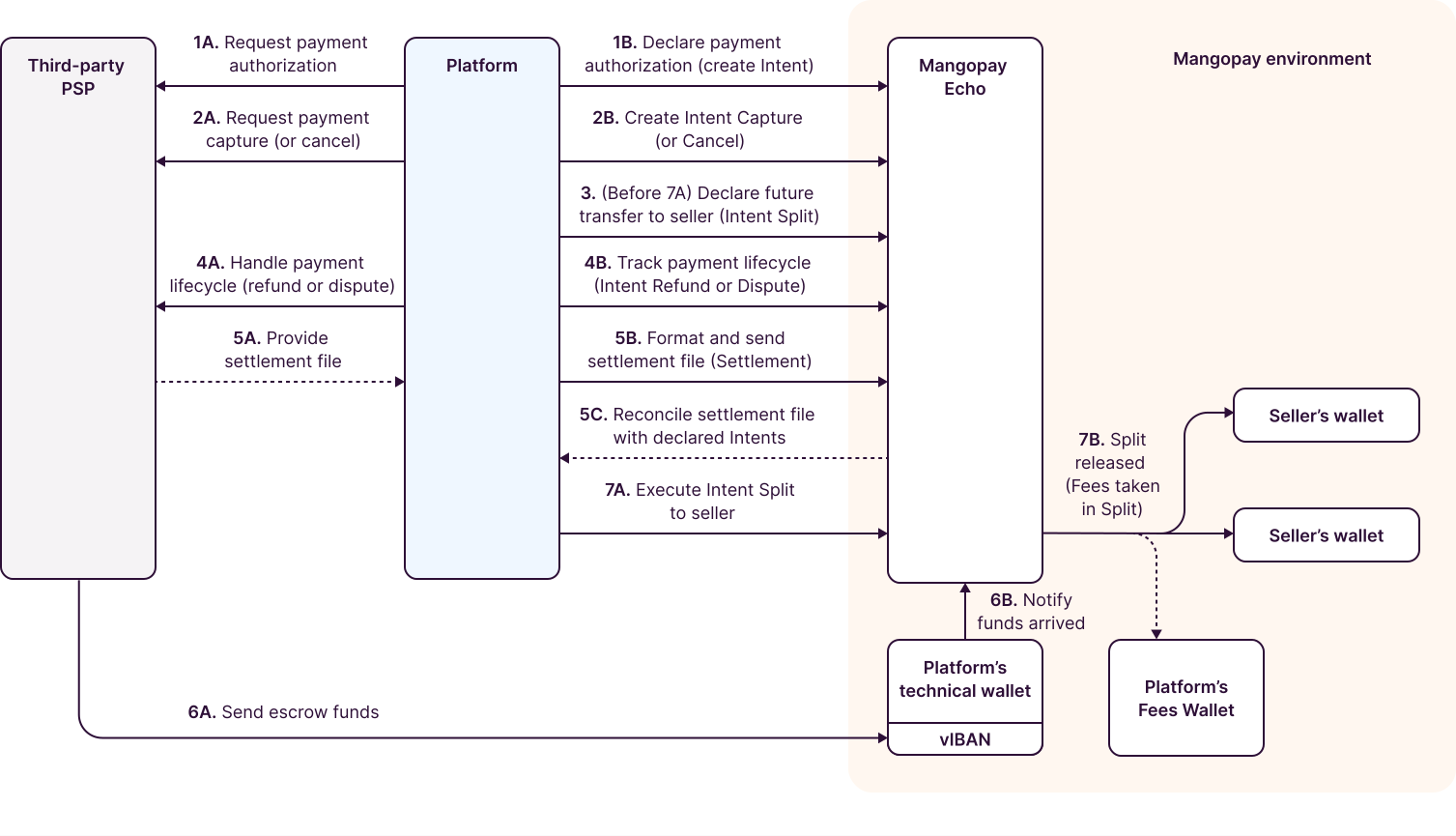
The diagram below focuses on the Intents and the actions performed by your platform when using Echo. This integration guide follows refers to the numbered steps along the main stages.
Onboarding
For existing clients, Mangopay uses the existing technical wallet and Virtual Account that are already in place in your workflow (instead of creating new ones as described below).
For new clients, before your platform can start integrating, Mangopay needs to know:
- The third-party PSP(s) you are working with
- The currencies in which you process transactions
- Whether your platform receives net or gross settlement from your PSP(s)
Then, for each combination of PSP and currency, Mangopay needs to create:
- Dedicated technical wallet
- Virtual Account attached to the technical wallet
The Virtual Account is the IBAN that will receive the funds sent by your PSP or your platform in step 6A.
The process above is the same for each ClientId you use, whether in Sandbox or Production.
Testing
To simulate the arrival of funds on the Virtual Account, you can use the Mangopay Dashboard.
Read more about how to test pay-ins to Virtual Accounts →
Postman
Once onboarded, you can use the Mangopay API Postman to start testing, where there is a dedicated folder for the Echo solution.
See the Postman guide for details on how to fork the collection and set up your environment with your ClientId and API key.
Declare payment authorization
Mangopay Echo allows your platform to compliantly declare transactions acquired by third-party PSPs as Intents. The Intent API object represents a payment authorization processed by a third-party PSP, and can subsequently be used to track the full lifecycle of the transaction.
Intent
The Intent represents the successful authorization of the transaction (1A), while its capture represents the acquisition of the funds by the PSP.
To create an Intent (1B), call the endpoint:
Include the following information:
- Payment details – Amount, currency, payment method
- External provider – Provider name, unique identifier of the transaction, date
- Buyer (optional) – If the user is also registered with Mangopay, the Mangopay
UserIdthat made the payment - Line items – A list of items purchased by the buyer. Each
LineItemsobject identifies the seller and the item purchased (amount, SKU, etc.).
Line items
The LineItems object describes the sellers and items purchased from them in the transaction.
Echo is designed to be flexible to accommodate a range of integration models, and this can have an impact on seller data in the LineItems.
Third-party transactions (3P)
Most commonly, the Intent is describing a transaction between a buyer and a seller on your platform.
In this scenario, your platform is an intermediary between third-parties (the buyer and seller), so we can call it a third-party transaction (3P). In a 3P scenario, the Seller is the beneficiary.
For a 3P line item, LineItems.Seller is the seller on your platform:
LineItems.Seller.AuthorIdis theUserIdof the seller on your platformLineItems.Seller.WalletIdis theWalletIdof the seller on your platform
First-party transactions (1P)
Echo has also been designed to accommodate transactions where the platform is the seller, selling directly to the buyer – as in standard e-commerce transactions.
In this case, we can refer to it as a first-party transaction (1P). In a 1P scenario, your platform operator is the beneficiary of the transaction.
For a 1P line item, LineItems.Seller is your platform:
LineItems.Seller.AuthorIdis yourClientIdLineItems.Seller.WalletIdis your Fees WalletIdin the relevant currency (e.g. in EUR,FEES_EUR)
Mangopay-acquired funds
If your platform acquires pay-ins with Mangopay as well as a third-party PSP, you also need to integrate Echo for the Mangopay-acquired flows.
Read more about this model and its integration approaches in the hybrid guide →
Add line items to an Intent
It is possible to add one or more additional LineItems to an Intent.
To date, this scenario is only typically encountered if your platform is using the Mirakl Connector, but as the functionality is technically available it is described here for completeness.
Note that this functionality must be activated by Mangopay – if you think it is required for your integration, contact Mangopay via the Dashboard.
When the Intent was created by the Mirakl Connector, your platform needs to add the 1P part of a mixed basket to the Intent separately, as these funds are not visible to the connector.
You can add line item by using the same ExternalProviderReference as the initially created Intent and on the same POST Create an Intent endpoint.
To do so, send the ExternalProviderReference of the previously created Intent and include only the new LineItems object(s).
Line items can be added to intents both before and after capture, as shown by the examples below.
Capture before additional line item:
- Create Intent with one
LineItemsobject – Intent becomesAUTHORIZED - Capture
LineItemsobject – Intent becomesCAPTURED - Add second
LineItemsobject – Intent becomesPARTIALLY_CAPTURED - Capture second
LineItemsobject – Intent becomesCAPTUREDagain
Capture after additional line item:
- Create Intent with one
LineItemsobject – Intent becomesAUTHORIZED - Add second
LineItemsobject – Intent remainsAUTHORIZED - Capture first
LineItemsobject – Intent becomesPARTIALLY_CAPTURED - Capture second
LineItemsobject – Intent becomesCAPTURED
Declare capture or cancel
When the third-party PSP captures the funds (2A), you need to declare this to Mangopay (2B).
Alternatively, if the Intent, or part of it was created in error, it can be canceled using the POST Cancel an Intent endpoint.
An Intent Cancel can only be created if the Intent Status is AUTHORIZED. It is not possible to cancel an Intent after it has been captured, even partially – in this case an Intent Refund needs to be declared instead.
Intent Capture
To declare the capture, call the POST Create an Intent Capture endpoint using the Intent’s Id.
In all cases, the capture of an Intent is a separate Mangopay API call from the Intent creation.
There are three possible scenarios:
- Authorization simultaneous with capture – No new data required because the external data is the same as the authorization, so the call has an empty body.
- Authorization and delayed full capture (e.g. preauthorization) – New data is required for the external PSP reference and amount, because a delayed capture is necessarily a different object.
- Authorization and partial captures – New external data is required along with the amount for each line item that is being captured.
Declare future split transfer to seller
In Echo, the future transfer of funds to seller’s Mangopay wallet is called a Split, and you need to create this request in the Mangopay API.
To create a Split (3), call the POST Create an Intent Split endpoint.
Note – Split creation timing depends on your workflow
A Split can be declared via the API as soon as the Intent Status is CAPTURED or PARTIALLY_CAPTURED (2B).
However, depending on your workflow, it may be more suitable to wait until a later stage, such as the settlement to Mangopay being reconciled (5C) or paid (6A & 6B).
When you create a Split for the Intent, you declare also the fees that will be taken by your platform for the transaction (and diverted to your Fees Wallet) when the split is executed by Mangopay (7B).
Alternatively, you can specify the PlatformFeesAmount in the Intent, which is used if there is no FeesAmount in the Split.
Track the payment lifecycle
Once the authorization and capture are declared, your platform needs to track any other transaction events that occur on the payment (4A & 4B), namely refunds and disputes.
See the dedicated guide for details:
Send settlement files to Mangopay
Note – Also applies to Mirakl Connector platforms
Platforms using the Mirakl Connector also need to send settlement files to Mangopay as described below.
When your third-party PSP settles the transaction with your platform, they provide settlement files for reconciliation purposes (5A).
Mangopay Echo needs settlement data to be able to reconcile the funds entering the Mangopay environment with the payment Intents that your platform previously declared. The payment and possible refund or dispute may all be reflected in the settlement of the transaction to your platform.
You need to format this settlement data according to Mangopay’s expected format and send settlement files to Mangopay as soon as they become available, and in one file for each currency (5B).
If the data provided does not match the Intents created, the reconciliation process fails and the settlement file Status becomes FAILED or PARTIALLY_MATCHED. In this case, you need to retrieve the errors using the GET View validation errors for a Settlement endpoint and address them.
Settlement file amount calculation
The amounts that you declare in the settlement file need to be positive or negative depending on the ExternalTransactionStatus:
SETTLED- PositiveREFUNDED- NegativeREFUND_REVERSED- PositiveDISPUTED- NegativeDEFENDED- NegativeDISPUTED_WON- PositiveDISPUTED_LOST- Negative
This positive and negative polarity is critical to ensure that the total amount of the Settlement file is calculated correctly. The formula used is given below:
TotalNetSettlementAmount = MAX(0, SUM(SETTLED) + SUM(REFUNDED) + SUM(DISPUTED) + SUM( REFUND_REVERSED) + SUM(DISPUTED_WON) + TotalSettlementFeesAmount)
As shown (by the MAX formula), the amount cannot be negative. In such a case, for example if the total refunded amount equals more than the settled amount, then Mangopay does not return funds to the PSP. Rather, they are used towards the next Settlement.
How to send a settlement file to Mangopay
Create a file in Mangopay’s format
Using the data received from your provider, create a CSV file according to Mangopay’s settlement file format.
You can use this example template to help you.
Generate a secure upload URL
Call the POST Create a Settlement and secure URL for file upload endpoint with the FileName that Mangopay will use for your file.
This API call generates a unique temporary pre-signed URL that you can use to upload your file.
Upload your file
Send your file to the URL returned, using the text/csv Content-Type (see PUT Upload a settlement file to the secure URL for details).
Once the file is uploaded, the Settlement object’s status changes from PENDING_UPLOAD to UPLOADED (which you can retrieve on GET View a Settlement). Echo then proceeds to parse the file as described below.
Reconciliation
Echo performs reconciliation between the settlement file you upload and the Intents declared by your platform. The reconciliation process is described in detail in the dedicated Echo reconciliation guide.
Fund the technical wallet
In your workflow, the funds acquired by your third-party PSP arrive in the Mangopay environment as a payment to your dedicated technical wallet (6A).
In most cases, this payment is handled by your PSP (referred to as direct settlement). In some cases, your platform makes the payment.
Once the funds arrive, the Settlement Status changes to RECONCILED. If the funds which arrive on the wallet do not cover the amount declared in Intents and Settlements, the Status changes to INSUFFICIENT_FUNDS.
Release split transfers to sellers
Once the Settlement is reconciled, your platform can release the previously created Splits to the sellers (7A).
Your platform can divert fees to your Fees Wallet using the FeesAmount parameter.
Once the funds are credited to the sellers’ wallets, they can be paid out to their external bank accounts.
Webhooks
There are dedicated webhook event types that your platform can use to be notified about activity related to: